

Instagram is a mobile-based photo sharing service, allowing users to post pictures and videos and share their ideas. What sets Instagram apart from others is that while you can view photos and videos on its website, you can only post through the mobile app. Much like other social media, you can choose to make your account available to the public or private, where you can approve or reject followers that request to follow you.
Instagram can be used by everyone, students and teachers alike. For example, our teacher, Kerry Gallagher, uses her Instagram to showcase what her students do in the classroom. Teachers and students can utilize hashtags to keep photos organized neatly. Jennifer Gray, a 7th grade French and Spanish teacher, also wrote a great blog post about Instagram and how to incorporate it with school.
.PNG)
.PNG) When you first open Instagram and make an account, you will be taken to your timeline of people you follow. There, you can watch, like, and comment on photos posted by others. This is represented by the house icon on the bottom left corner.
When you first open Instagram and make an account, you will be taken to your timeline of people you follow. There, you can watch, like, and comment on photos posted by others. This is represented by the house icon on the bottom left corner.
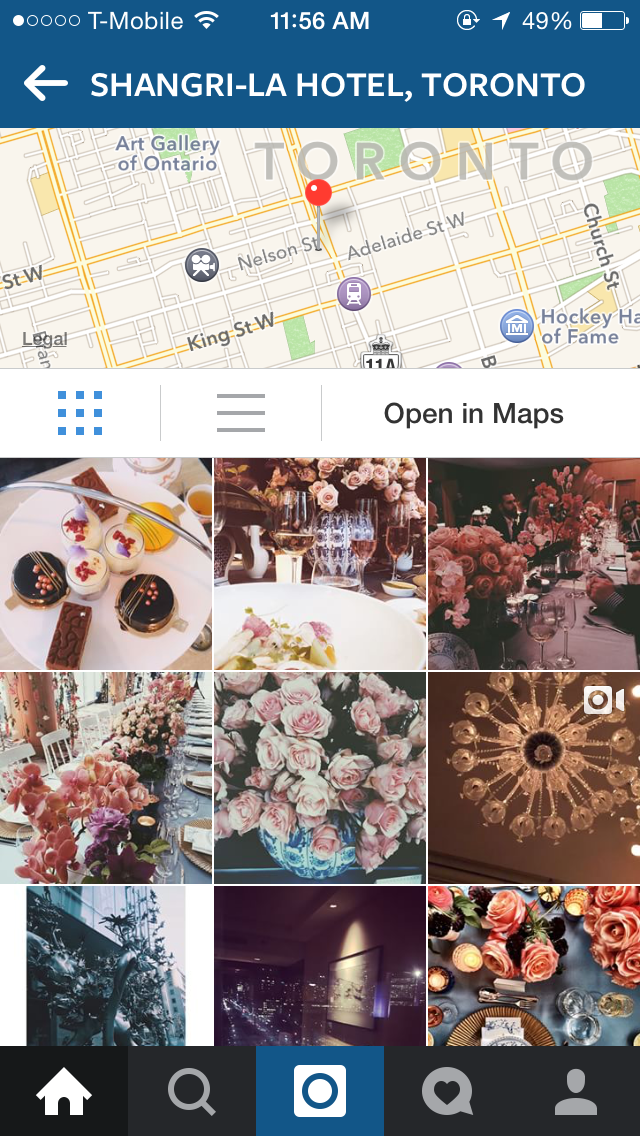
The photos can be geotagged, as seen in the photo to the left. If you tap on the location, it will open to show a map of where the location is as well as pictures other users had posted there. You can also tag other users on photos as well!
The home page is also where you can send direct messages to other users. That function is represented by the mailbox icon on the top left corner.
To send a direct message to someone, simply tap the "+" icon at the top right corner, take you picture or video, write your message, and select who to send it to. It is similar to posting a picture or video to your followers, which we will cover later.
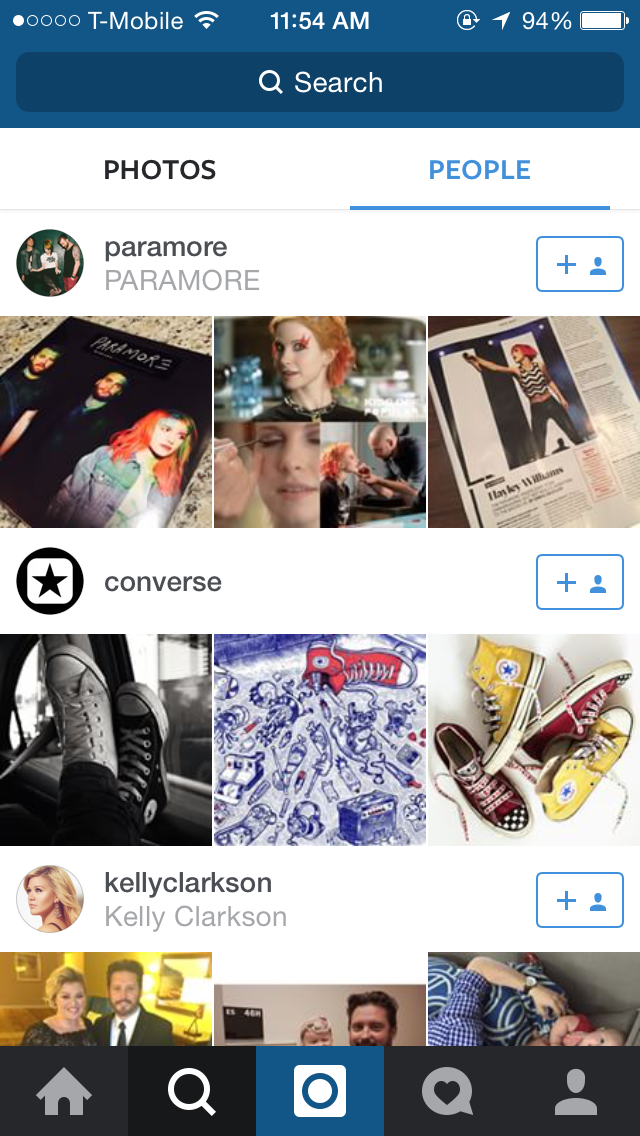
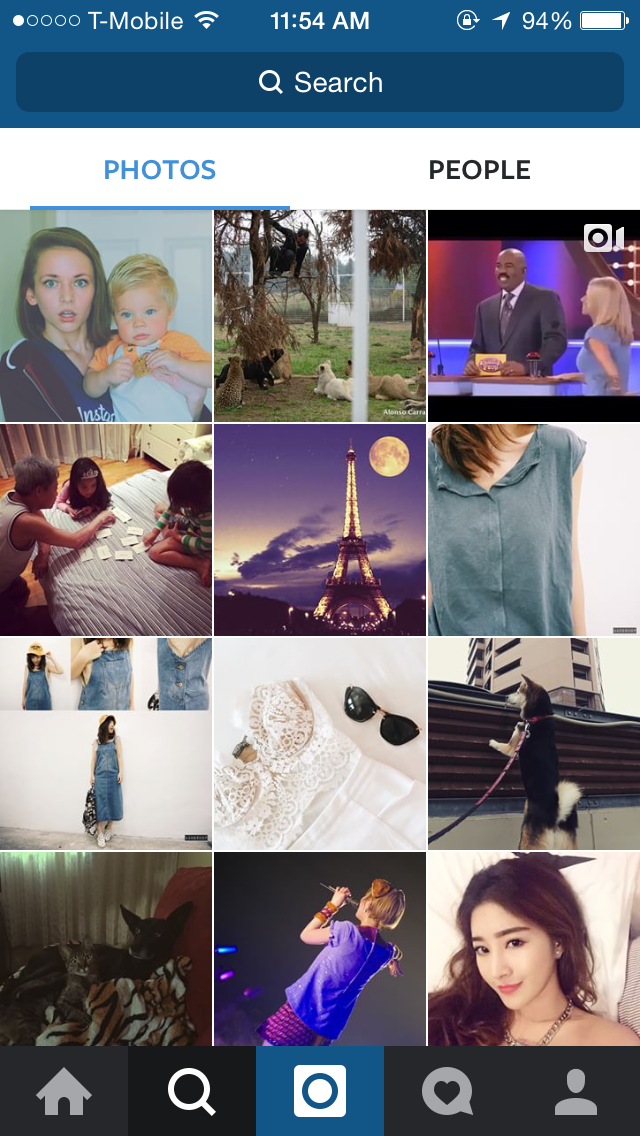 The second icon with the magnifying glass is essentially two pages in one: a place to search for users and hashtags and discover new creations being uploaded by different people.
.PNG)
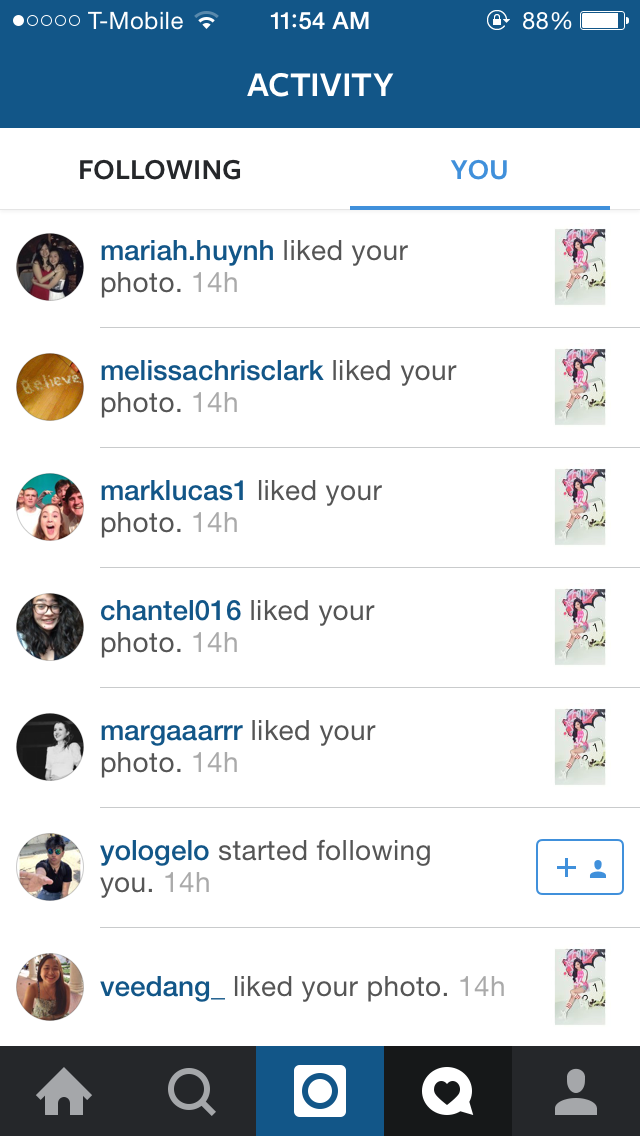
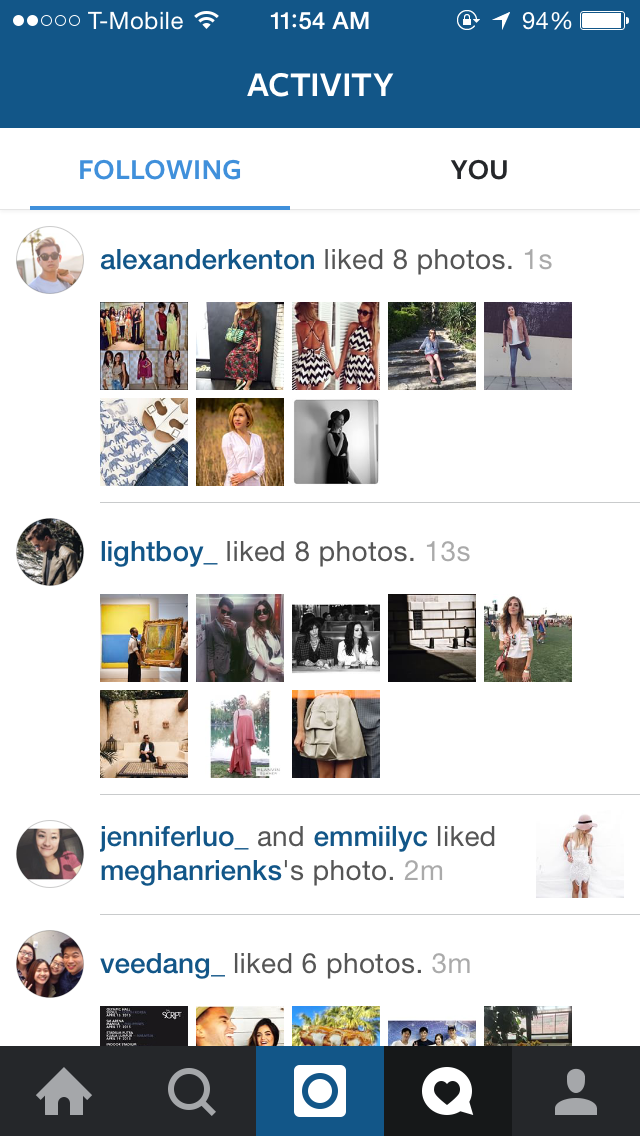 The activity page is split into two different parts: you and the people you follow. The first tab, labeled "Following," is where you can see what the people you follow are liking and who they are following.
The second tab, "You," is a compilation of all the notifications you've received, sorted by time. It will notify you when a friend from Facebook joins Instagram (if you decide to connect your account to Facebook), when a person follows you, tags you, or likes one of your photos.
To access the settings page, you go to see your profile. On the top right corner, you will see a gear icon. Tap on it to access your settings.
Instagram can be used by everyone, students and teachers alike. For example, our teacher, Kerry Gallagher, uses her Instagram to showcase what her students do in the classroom. Teachers and students can utilize hashtags to keep photos organized neatly. Jennifer Gray, a 7th grade French and Spanish teacher, also wrote a great blog post about Instagram and how to incorporate it with school.
The Home Page
When you first open Instagram and make an account, you will be taken to your timeline of people you follow. There, you can watch, like, and comment on photos posted by others. This is represented by the house icon on the bottom left corner.The photos can be geotagged, as seen in the photo to the left. If you tap on the location, it will open to show a map of where the location is as well as pictures other users had posted there. You can also tag other users on photos as well!
 |
| the direct message page |
The home page is also where you can send direct messages to other users. That function is represented by the mailbox icon on the top left corner.
To send a direct message to someone, simply tap the "+" icon at the top right corner, take you picture or video, write your message, and select who to send it to. It is similar to posting a picture or video to your followers, which we will cover later.
The Discover/Search Page
The second icon with the magnifying glass is essentially two pages in one: a place to search for users and hashtags and discover new creations being uploaded by different people.
Based on who you follow, Instagram compiles a list of people you might find interesting as well as photos you may like.
The search bar on top allows you to type in users and hashtags.
The Activity Page
The activity page is split into two different parts: you and the people you follow. The first tab, labeled "Following," is where you can see what the people you follow are liking and who they are following. The second tab, "You," is a compilation of all the notifications you've received, sorted by time. It will notify you when a friend from Facebook joins Instagram (if you decide to connect your account to Facebook), when a person follows you, tags you, or likes one of your photos.
The Settings Page
 |
| Settings 2 |
 |
| Settings 1 |
 |
| Your profile |
From there, you will see several subheadings. The ones labeled "Account," and "Settings," are the two that will be used the most. You will see in the screenshot provided (in Settings 1) that you can edit your profile, change your password and set your profile to a private account.
Under "Settings," you are able to link accounts to a number of social media. The "Push Notification Settings" is where you can choose whether or not to receive notifications from Instagram. "Cellular Data Use" is simply choosing to use more or less data when scrolling through Instagram.
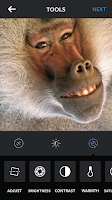 Posting on Instagram is very simple - it's the blue camera icon in the bottom middle of the screen. You have several options when it comes to posting: you can take or film pictures and videos directly from the app, or select a photo or video you already have on your phone.
There are various filters you can choose from, and if you want you can use their tools to make slight adjustments until satisfied.
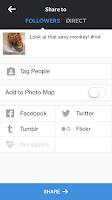 When you're done and happy with your post, tap "Next" and the app will take you to the posting page. There, you can write down what you want for a caption, add hashtags, tag people, and simultaneously post your photo to other social services.
To tag others, tap words "Tag People" and your photo will pop up. You can then tap anywhere on the picture, type in the person you want to tag's username, and it's done!
Happy posting!
Under "Settings," you are able to link accounts to a number of social media. The "Push Notification Settings" is where you can choose whether or not to receive notifications from Instagram. "Cellular Data Use" is simply choosing to use more or less data when scrolling through Instagram.
Posting on Instagram
 |
| taking pictures directly on app |
 |
| selecting a photo already on phone |
 Posting on Instagram is very simple - it's the blue camera icon in the bottom middle of the screen. You have several options when it comes to posting: you can take or film pictures and videos directly from the app, or select a photo or video you already have on your phone.
 |
 When you're done and happy with your post, tap "Next" and the app will take you to the posting page. There, you can write down what you want for a caption, add hashtags, tag people, and simultaneously post your photo to other social services.
To tag others, tap words "Tag People" and your photo will pop up. You can then tap anywhere on the picture, type in the person you want to tag's username, and it's done!
Happy posting!
